

If you’re a parent trying to keep up with the apps your kids are using, you’ll know it can feel like a lot.
TikTok, YouTube, WhatsApp, Roblox, Discord… each one has its own menus, privacy settings and parental controls. And half the time they’re buried three layers deep in places you’d never think to look.
Like most parents, I’m constantly trying to work out how best to supervise, guide and protect my kids online — and it can feel overwhelming. So I spent some time going through the platforms kids are using most and pulling together the key settings in one place.
No jargon. No judgement. Just the practical things you can switch on or check so your child’s accounts are as safe and protected as possible.
Bookmark it. Do it this weekend. No need for detective skills.

If You Start With Three Things
Most parents won’t change 40 settings across 9 apps at once. But these three take five minutes and massively reduce risk.
1️⃣ Lock WhatsApp Groups
Settings → Privacy → Groups → My Contacts
Stops strangers adding your child to large group chats.
2️⃣ Turn On YouTube Restricted Mode
Settings → General → Restricted Mode → On
Filters out mature content and reduces inappropriate recommendations.
Turn Autoplay Off at the same time to stop endless video chains, specific shorts controls are currently being rolled out too.
3️⃣ Set Router Parental Controls
Log into your broadband account (BT / Sky / Virgin etc.) → Parental Controls
This blocks adult websites across every device in your house.
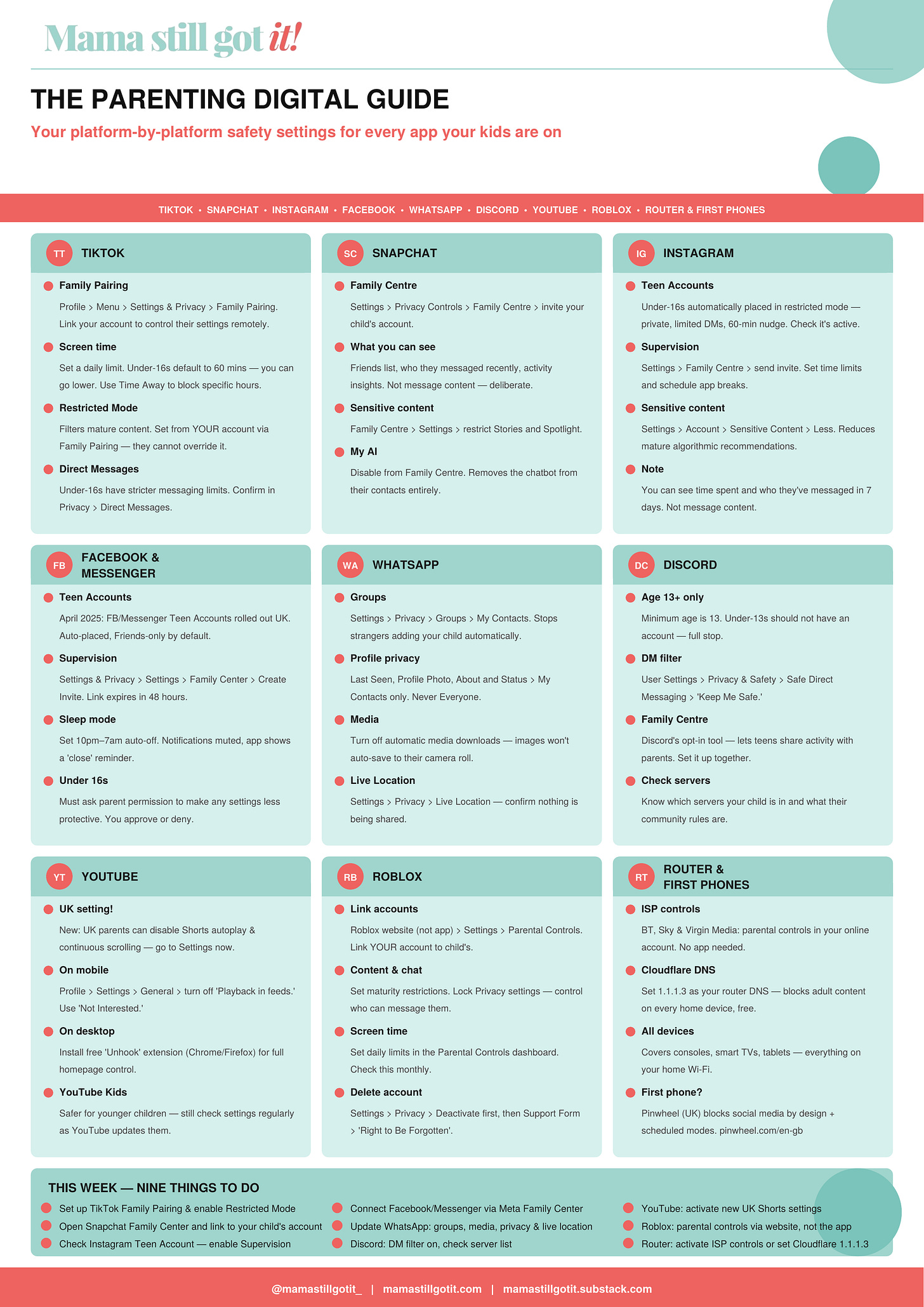
Download the Parenting Digital Guide
As well as the full guide below, I’ve also put all of this onto a one-page printable sheet you can stick on the fridge or share with your school WhatsApp group (this is when they are useful). Hold down and hit save image or click for the PDF version, share as far and wide as you can!
You can also share this full article too!
The Full Platform Guide
🎮 Roblox
The parental controls exist to an extent. They’re just buried.
Link Accounts: Roblox website (not app) → Settings → Parental Controls. Link your account to theirs for better control.
Content Maturity Settings: Adjust allowed experiences based on age.
Chat & content: Lock Privacy settings and set maturity restrictions from the parental dashboard.
Delete Account: Deactivate first via the website → Privacy settings, then submit a support request if you want permanent removal.
🎵 TikTok
TikTok requires users to be 13+, but millions of younger kids still end up on it.
Family Pairing: Profile → Menu → Settings & Privacy → Family Pairing
Link your account to your child’s so you can control their settings remotely.
Screen Time: Set a daily limit. Under-16s default to 60 — you can go lower.
Restricted Mode: Filters mature content. Set this from YOUR account via Family Pairing — they can’t override it.
Direct Messages: Accounts under 16 have stricter messaging limits and are private by default. Confirm in Privacy → Direct Messages.
👻 Snapchat
Snapchat is hugely popular with teens — and often invisible to parents.
Family Centre: Settings → Privacy Controls → Family Centre. Invite your child’s account.
You can see:
- Their friends list
- Who they’ve messaged recently
- Activity insights
You cannot see message content, which is deliberate.
Sensitive Content Control: Family Centre → Settings → restrict Stories and Spotlight.
My AI: Disable it from Family Centre. Removes the chatbot from their contacts.
Meta now automatically places under-16s into Teen Accounts with stricter defaults.
Supervision: Settings → Family Centre → send invite.
Lets you:
- Set time limits
- See time spent
- Schedule app breaks
Sensitive Content Control: Settings → Account → Sensitive Content → Less
Reduces algorithmic recommendations of mature content.
👍 Facebook & Messenger
Many younger teens still use Messenger group chats.
Family Centre: Settings & Privacy → Family Centre → Create Invite to send to your child.
Sleep Mode: Set quiet hours (for example 10pm–7am) so App closes, notifications mute.
Permission Requests: Under-16s must ask before loosening safety settings.
The one parents assume is safe. It isn’t — unless you change a few things.
Groups: Settings → Privacy → Groups → My Contacts
Stops strangers adding your child to large chats.
Profile Privacy: Set Last Seen, Profile Photo, About and Status to My Contacts only.
Media Visibility: Turn off automatic media downloads so images don’t automatically appear in their camera roll.
Live Location: Settings → Privacy → Live Location → check nothing is actively being shared.
Disappearing Messages: Settings → Privacy → Default Message Timer → Off.
🎧 Discord
If your child plays online games, they are very likely already using Discord.
Minimum age: 13.
Safe Direct Messaging: User Settings → Privacy & Safety → Keep Me Safe
Filters messages from unknown users.
Family Centre: Optional tool where teens can share activity insights with parents.
Servers: Know which communities they are in. Anyone can create a server.
▶️ YouTube
YouTube is often where kids spend most of their screen time.
Recent updates are currently rolling out to allow parents to limit or block time spent scrolling Shorts feeds on supervised accounts.
Turn Off Autoplay: Child’s Profile → Settings → Playback → disable autoplay.
Supervised Accounts: Use Google Family Link to manage a child’s YouTube access. Check this is on – Settings → General → Restricted Mode → On
YouTube Kids: Safer for younger children, but still worth reviewing settings regularly.
🌐 Your Home Router
If you only change one thing from this list, do this.
Router-level controls cover:
- phones
- tablets
- games consoles
- smart TVs
- laptops
ISP Controls: BT, Sky and Virgin all provide parental filtering through your account dashboard. Log in and go through the settings.
Family DNS (optional): A free family internet filter that blocks adult websites on your home Wi-Fi. Set it once on your router, and it works across every device in the house — phones, tablets, games consoles and smart TVs. Search this one for detailed instructions!
📵 Smartphone-Free Childhood
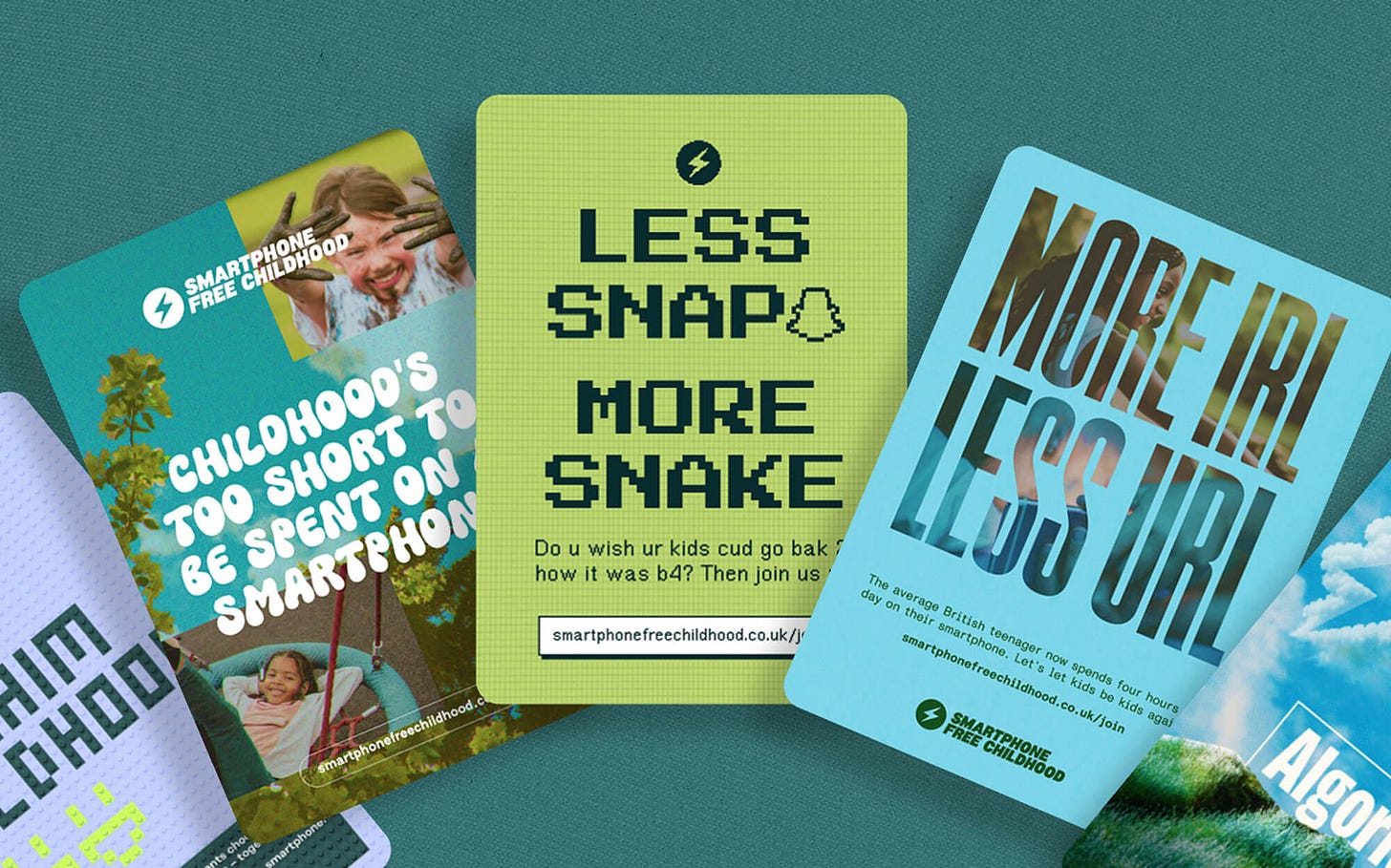
You may have seen the growing Smartphone Free Childhood campaign across the UK. I am fully behind it, as well as many other parents I know.
It encourages parents to delay smartphones until age 14, and social media until 16 — giving kids more time before the pressures of algorithms, group chats and the endless scroll.
Thousands of parents and schools have already signed the pledge to raise the age.
If you’re curious, you can read more at smartphonefreechildhood.org and follow their Instagram for great advice.
Even if your child already has a phone, it’s one more reason these settings matter.
💛 Business Shout Out – Pinwheel
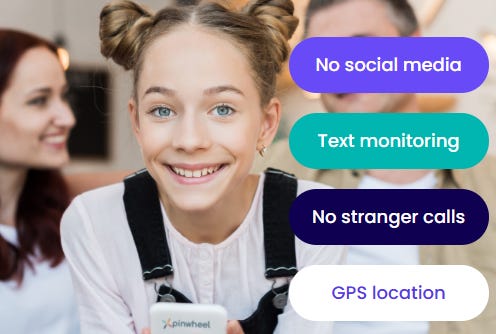
A mobile phone designed specifically for a younger audience. Many parents are now looking for a solution once they children are old enough to walk home from school and they want them to have some form of contact.
Instead of trying to lock down a normal phone with dozens of settings, Pinwheel simply doesn’t allow social media apps in the first place.
Features include:
- Parent-approved contacts
- School mode
- Bedtime mode
- A curated app store with vetted apps
They are trying to solve the problem of trying to retrofit safety onto a device that was never designed for kids in the first place.
The Bottom Line
The platforms aren’t going to protect our kids online.
So we have to.
You now have the settings. If you get stuck on any, as devices can vary, pop it into your search engine or AI with the device you are on and it will talk you through.
Louise x